A Deeper look into Workspace Control and its challenges

Table of contents :

1: Introduction
2: The Workspace Control process in UML
3: Workspace Control and Auto launch usability
4: Special note : Using Workspace Control with Receiver for Web
5: Special note : Using Workspace Control with Linux Receiver
6: Special note : Using Workspace Control with Native Receiver and Mobile Receivers
7: Conclusion

1: Introduction :

In this blog post I will dive a little deeper into the Citrix Workspace Control functionality, I will show you how the Workspace Control process works and what kind of challenges it can bring to the table. For those not familiar with Workspace Control, it’s the mechanism in Webinterface and Storefront that lets users (automatically) reconnect to existing sessions when they are roaming. To start with some basics : Workspace Control can reconnect two types of sessions, Active sessions and Disconnected sessions.

The Workspace Control process is triggered in the following 2 scenarios :

– The Automatic reconnect process when a user logs on to Webinterface or Storefront
– The Manual reconnect process when a user clicks on the reconnect button in Webinterface or Storefront

Workspace Control isn’t triggered in the following scenarios :

– When a user clicks on an application or desktop manually
– When Auto launch is enabled
– When you connect straight to a XenApp server, without using Webinterface or Storefront
– When Workspace Control is disabled, either by admin or user
– When points apply that you will find in the following UML flow diagram in the following chapter

2: The Workspace Control process in UML

Below you will find an UML diagram that will show you the Workspace Control process based on the Automatic and Manual reconnect process. (click to en large)

3: Workspace Control and Auto launch usability

Auto launch is a feature you can configure in Webinterface or Receiver for Web to launch a specific Application or Desktop after a user logs on, this functionality is especially useful when you have only one published desktop.  In this way the user doesn’t have to click the desktop icon, but instead it launches directly after the user authenticates. The downside of auto launch however is that it disables the Workspace Control functionality at logon. This isn’t necessarily a problem when using XenDesktop, but for XenApp this can result in multiple sessions being launched by the user and this is something you often want to prevent, it’s getting more worse when you have session limits in place because this can even prevent the user to login when there is already an active session. To overcome this I often use one of the below two methods, please leave a comment when you use other methods to solve this challenge for XenApp.

1: Restrict users to a single session, Enable Workspace Control and Disable Auto launch
In this scenario the user logs on to Webinterface or Storefront, when there is no active\disconnected session the user clicks on the Desktop or Application and launches his session. When the user logs on from another device, Workspace Control kicks in and reconnects the session immediately after the user authenticates. The user can also choose to manually disconnect and reconnect the session through Workspace Control. In this scenario Workspace Control in combination with Session limits is used to control the number of sessions on the XenApp farm.

2: Allow multiple sessions, Enable Auto launch and use RES session guard
If you have RES Workspace Manager in place, you can leverage the RES session guard feature to notify users of already active sessions and let them disconnect them on the fly. If you educate the user how to use this, session guard can be a real handy feature to simulate a Workspace Control alike functionality. Plus you can also define a group of users (through a dummy  administrative role) that can login multiple times. This is especially handy when you have shared accounts or a couple of users that needs to logon multiple times concurrently. The only down side of this method is that the user needs to login twice when an active session is detected, one time to disconnect the session and one time to reconnect to the disconnected session. The plus side is that you can enable Auto launch to immediately launch the Desktop after the user authenticates, because RES session guard will control the amount of sessions and you don’t have to use Workspace Control in combination with Session limits anymore.

Below is a printscreen of the RES Session guard in action when multiple sessions are detected :

Session Guard detects multiple sessions by creating a lock file (guard.lock) inside the homefolder , the above message is displayed when the file is detected, after the user logs off the lock file is removed.

4: Special note : Using Workspace Control with Receiver for Web

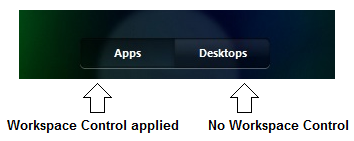
From Storefront version 1.2 the Auto launch feature is enabled by default in Receiver for Web when there is only one published Desktop available for the user, this also means that Workspace Control is disabled by default, but the most important thing to note is that since the separation of Apps and Desktops in Receiver for Web, the Workspace Control functionality is completely disabled in the Desktops section (see below screenshot for clarification). This makes sense when using XenDesktop, but you may still want to use Workspace control for your published XenApp desktops. To enable Workspace Control for published XenApp desktops, you can put a keyword in the published XenApp desktop description field (KEYWORDS:TreatAsApp) so Receiver for Web will treat it as Application instead of Desktop, thus enabling Workspace Control again.

Workspace Control (for the Apps section) can be configured by editing the web.config file in the inetpub directory of the Storefront server, this is a little step backwards because with Webinterface you could do this through the GUI.

5: Special note : Using Workspace Control with Linux Receiver

Linux Receivers found in linux based Thinclients often use the PNAgent site to request and launch published applications and desktops, the key component used here is the PNABrowse utility. PNABrowse is often scripted by the Thinclient manufacturer and embedded in the customized Thinclient OS, like the HP ThinPro and HP Smart Client series. PNABrowse uses the –WR parameter to leverage Workspace Control and connect to active and Disconnected sessions. You can control Workspace Control behavoir for this clients by editing this parameter in the following way :

-WR = Connect to Active and Disconnected sessions
-Wr = Connect to Disconnected sessions only
– Remove –WR = don’t use Workspace Control

There will be a new Linux Receiver released by the end of the year that can connect natively to Storefront without using Legacy PNAgent.

6: Special note : Using Workspace Control with Native Receiver and Mobile Receivers

For the Windows Native Receiver and Mobile Receivers connecting to Storefront, there is currently no good way to configure Workspace Control, it’s always enabled by default. Native Receivers are a good launch platform for published applications and data, but it lacks the option to fine tune them for different access scenarios like Workspace Control or Auto launch, you have to use the Receiver for Web or Webinterface if you want to control this. Also the native Receivers doesn’t make a difference between applications and desktops yet (only apps and data), so Workspace Control will be enabled for both by default which can be a problem. Hopefully Citrix will add more options to control this behavoir in future releases of Storefront.

7: Conclusion

The main goal of Workspace Control is to reconnect published applications when users are roaming, but it’s also often used in combination with session limits to control the number of user sessions and optimize the user experience. It’s clear that Citrix is moving away from Workspace Control when using published Desktops and rather use Auto launch instead, but for XenApp this can be a challenge. You can still leverage Workspace Control in newer versions of StoreFront by treating the published XenApp desktop the same as an published application. Maybe the new Flexcast Management Architecture (FMA), which is part of the upcoming Excalibur release, will change the way how we deliver and reconnect to XenApp published desktops so Workspace Control isn’t necessary anymore to control the user sessions, in the mean time you can either use Workspace Control in combination with session limits or RES session guard to optimize the user experience and control the amount of user sessions in your XenApp farm.

Please note that the information in this blog is provided as is without warranty of any kind.

Cloud Gateway a Wrap-Up so far Part 2

Cloud Gateway a Wrap-Up so far Part 2

Table of Contents :

1 : Introduction
2 : Cloud Gateway architecture and components
3 : Cloud Gateway Mobile Experience (MDX) Technology
4 : Access Gateway : ICA Proxy, Clientless VPN and Secure Browse
5 : Native Receiver VS Receiver for Web
6 : ShareFile
7 : Conclusion

1 : Introduction

A few months ago I wrote a wrap-up about Citrix Cloud gateway and the upcoming 2.0 release, it’s one of the posts on my blog that gets the most hits so I thought I should write a follow-up. If you are new to Cloud Gateway you should read my previous wrap-up first to get a better understanding of the architecture. In this post I’m going through the new features of Cloud Gateway 2.0 and things I came across when setting up a demo environment.

2: Cloud Gateway architecture and components

Cloud Gateway consists of the following key components :

Appcontroller for User provisioning and SSO to Web (internal & external), SaaS and Native mobile apps
Citrix Receivers for connecting to Cloud Gateway

Optional components are :

Storefront Services for connecting to XenApp & XenDesktop back-end and providing access through Receiver for Web \ HTML5
Access Gateway Enterprise (Netscaler VPX/MPX) for external access to Cloud Gateway
Merchandising Services for controlled plugin distribution
– Integration with ShareFile infrastructure (Follow-Me-Data)

All optional components are included in the current Cloud Gateway Enterprise edition, except for the ShareFile subscription fee and the Access Gateway Platform license (universal licenses are included).

Citrix made a clever move by making Storefront services an optional component of Cloud Gateway, in this way they can sell Cloud Gateway as a separate stand-alone product, but on the other hand offer tight integration through Storefront for existing Citrix customers. I think the majority will use Cloud Gateway to extend their current Citrix back-end so Storefront will play a key role in most environments. In the use case that Storefront is not used, Citrix Receivers connects straight to Appcontroller or indirect through Access Gateway to Appcontroller.
Because I think a picture speaks 1000 words, I made a basic diagram of the Cloud Gateway components including ShareFile :

3 : Cloud Gateway Mobile Experience (MDX) Technology

Cloud Gateway MDX is the new marketing term for the features of Cloud Gateway, you can compare it with the marketing term HDX which stands for all the user experience optimizations around the ICA protocol. Let’s translate the MDX features into some more technical descriptions :

Feature Description
MDX App vault Sandboxed container controlled by Citrix Receiver which can be   remotely wiped
MDX Web Connect Embedded (mobile) web browser for secure browse connections
MDX Micro VPN Client side rewrite technology through Netscaler (Secure Browse)
MDX Policy Orchestration Management of (native) mobile apps through Appcontroller and   provides smart access like features

This MDX features gives IT control and security over their apps and data, but at the same time gives the users the freedom to control their own mobile device. I think this is best for both worlds and it prevents that users are going to work around the system.

MDX Ready Program
Citrix will initiate a MDX Ready partner program to validate apps for use with MDX, Citrix self will release an MDX native e-mail app which runs inside the App vault container and doesn’t expose itself to other apps on the mobile device improving security.

4: Access Gateway : ICA Proxy ,Clientless VPN and Secure Browse

Ok now things are getting very interesting, lets start with Access Gateway…

Access Gateway support
Cloud Gateway MDX features are only available in conjunction with Access Gateway Enterprise (Netscaler), there is no support for Access Gateway VPX (STD\ADV), in fact Citrix will shortly announce that Access Gateway VPX will go end-of-life. I wrote a blog about the future of Access Gateway a while ago, I wrote down my thoughts about why Citrix would support 2 products with almost identical features and why I think Access Gateway Enterprise (Netscaler) is the better product. At first I thought they should keep Access Gateway VPX as a replacement for Secure Gateway to provide basic connections and provide it for free, but then they would still need to support 2 products. If we look at the VPX appliances, we have a Netscaler VPX and the Access Gateway VPX, if we look at the MPX appliances we have the Netscaler MPX and Access Gateway Enterprise MPX, did you spot the outsider? Yep the big difference is that Access Gateway VPX is a very different product and the rest is Netscaler only licensed differently, if we look closer there is one edition missing :

Access Gateway Enterprise VPX
To replace Access Gateway VPX, there will be a Access Gateway Enterprise VPX edition (Finally!), this is a stripped down Netscaler which only gives you access to Access Gateway features. Citrix will also provide trade-ups and will adjust the pricing accordingly. So at the end we will have the following Access Gateway appliances left :

CAGEE Physical Appliance (MPX) CAGEE Virtual Appliance (VPX)
MPX 5500 Access Gateway Enterprise VPX
MPX 7500/9500
MPX 9700/10500/12500/15500

If you have a Netscaler MPX\VPX appliance you can enable the Access Gateway component and use it besides all other Netscaler functionality.

Access Gateway Policies and Profiles
The power of Access Gateway Enterprise IMHO is its flexible architecture, Access Gateway Enterprise fits like a glove in a lot of different environments and different access scenarios, because of its modular design. Since the Cloud Gateway release there are a lot of Access Gateway policies and profiles needed for different access scenarios and Receiver types, it will take some time to create and configuring them manually. To address this Citrix added a wizard (since version 10.0.69.6) which will create a baseline of policies and profiles for you. After the baseline is set you can still configure and adjust everything  according your needs, so the wizard helps you with the baseline but there will be no compromise on the flexibility afterwards.

ICA Proxy
ICA Proxy will enable you to do SSO pass-through to Webinterface, it doesn’t use Clientless VPN so you can use it on a VIP in basic mode. ICA Proxy provides the same functionality as Secure Gateway, which means basic ICA connections only. It is not documented anywhere but I can confirm that ICA proxy still works with Receiver for Web so if you want to provide basic access to Xenapp or XenDesktop you can use it just like with Webinterface. If you want more Cloud Gateway functionality you need Smart Access functionality like CVPN :

Clientless VPN
Clientless VPN (CVPN) has been around in Access Gateway for a while now, this Server side rewriting technology is great for providing access to OWA and other webapps behind Access Gateway. But the downside of CVPN is that not every webapp supports it, I can remember spending a lot of time in troubleshooting rewrite policies to intranet applications, but if it works it works pretty well and you don’t have to leverage a full VPN tunnel to allow access to webapps securely. CVPN in a Cloud Gateway setup is only used for traffic to Receiver for Web and traffic to Appcontroller, besides that CVPN is turned off so external Web\SaaS apps are not rewritten by Access Gateway but instead opened directly by Receiver (after SSO is done by Appcontroller), for internal webapps there is a new feature in Cloud Gateway :

Secure Browse
Secure Browse is one of the features I’m most excited about, instead of leveraging CVPN or a Full VPN tunnel, the Receiver for IPAD uses a secure channel between Receiver and Access Gateway called Secure Browse (or MDX Micro VPN). Secure Browse provides secure session based access to internal webapps behind Access Gateway. Another cool thing about Secure Browse is that it’s using an embedded webbrowser (MDX Web Connect) to render both internal and external webapps controlled by Appcontroller. Web Connect is totally controlled by Citrix Receiver and doesn’t expose critical data on the mobile device, Secure Browse will support any webapp because there is nothing rewritten by Access Gateway so no more troubleshooting of rewrite policies and broken links.
Secure Browse is currently only available on the Receiver for IPAD, other Receivers will still leverage a full VPN tunnel to provide access to internal webapps, but it’s expected that Citrix will extend Secure Browse to other Receivers as well.
I tested Secure Browse with OWA and SharePoint and it works really well, I can’t wait to see this functionality on other Receivers to.

5: Receiver for Web VS Native Receiver

In my previous wrap-up I talked about the difference between Receiver for Web and Webinterface, it’s clear that there are still features missing in Receiver for Web in comparison to Webinterface, but Citrix is closing this gap in upcoming releases of Storefront, in version 1.2 for example they already made some enhancements by separating Desktops from Apps and allowing user initiated desktop restarts. In this wrap-up I made a list of different functionality I noticed when using the Receiver for Web and the Native Receiver, please note that this list can quickly become out dated when updates of the Receivers are released.

Receiver for Web Native Receiver
User initiated Desktop restarts Yes No
Desktop viewer used Only for XenDesktop Also for XenApp published desktops
ShareFile integration Through web SSO Embedded in Receiver
Location aware with Web Beacons No* Yes
SSO through Appcontroller Yes Yes
Initiate full VPN by clicking app No Yes
Separated views for Apps and Desktops Yes No
Auto Subscribed applications Yes Yes
Auto launch applications Yes** No
Sticky (mandatory) applications Yes*** No

* When connecting with Receiver for Web through Access Gateway, the connection is always established through Access Gateway. In Webinterface it was possible to configure the connection method based on the IP range, Web beacons makes the decision based on internal and external URLs but this only works for the Native Receiver.

** Auto launch is default enabled in Receiver for Web when there is only 1 published desktop, if you have more desktops published you can manually edit the Default.htm.script.min.js file to define which one should be auto launched, expected is that auto launch will be enabled through a keyword  just like with auto subscribed applications

*** Sticky applications removes the delete cross when you hover over the app icon, to enable this you need to manually edit the Default.htm.script.min.js file, expected is that sticky apps will also be enabled through a keyword in the app description

So it’s clear that there are some functional differences between this Receivers, which one you should use depends on the functionality you want and the access scenario you need to provide.
For example : If you want ShareFile integration besides published apps go for the Native Receiver, if you want to provide a (kiosk) access model for published desktops go for Receiver for Web.

6: ShareFile

ShareFile is another element of Cloud Gateway i’m very excited about, if you integrate ShareFile into your Cloud Gateway setup, you can give your users a true follow-me-data experience on every device without compromising on security. IT can remotely wipe data from lost or stolen devices and data is stored in an encrypted format to further improve security. Data is also available offline with ShareFile sync. Besides follow-me-data ShareFile enables users to share (large) files with colleagues, but also with external contacts, you can trace who downloads files or control the amount of downloads. Besides that file versioning, drive mappings and Outlook integration are all features that are available with ShareFile. Some elements are comparable with other follow-me-data solutions like RES Hyper-Drive, which is also a nice on-premise follow-me-data concept from RES Software, because ShareFile is now part of Citrix there is a tight integration with Cloud Gateway and the Receivers.

ShareFile and Appcontroller
You can establish a SAML trust between Appcontroller and ShareFile to provide account provisioning, in this way your AD users are automatically created inside ShareFile, I noticed in my demo environment that  this process sometimes take a while, so before you start troubleshooting wait a bit. Also be sure to create a role for ShareFile users inside Appcontroller, because if you select All Users, every AD account will be created in ShareFile consuming all your licenses (learned this the hard way). What’s very cool is that you can configure ShareFile to only allow authentication through Appcontroller and SSO, in this way users cannot connect to ShareFile directly further improving security. If SSO to ShareFile isn’t working please check the time settings on Appcontroller, if it’s a few minutes of SSO doesn’t work correctly, it took me some time to figure that out.

ShareFile Storage Zones
With ShareFile storage zones you can control where data is stored, a Storage Zone can also be On-Premise, more awesomeness will come in feature releases of Storage Zones when we can connect ShareFile to existing CIFS shares and SharePoint environments, imagine the possibilities!

7: Conclusion

Congratulations! you made it to the conclusion section 😉 sorry it was a bit of lengthy post but that’s because Cloud Gateway and surrounding technologies are a big deal and there is so much to cover. Cloud Gateway lets you aggregate and secure Cloud services and On-premise services into one logical logon point with the same look and feel on every device. Integration plays the key role in Cloud Gateway. I’m very excited about Cloud Gateway 2.0 and the upcoming features, on one hand its giving IT the flexibility and control over data, apps and security they need and on the other hand gives the user freedom to choose whichever device they like to use, I really think this concept is the future and I think it will change the traditional desktop as we know it today.

If you want to be notified when Part 3 or another blogpost comes out, subscribe to my blog site or follow me on Twitter : @bramwolfs

Please note that the information in this blog is provided as is without warranty of any kind, it is a mix of own research and information provided by Citrix. Some information is based on speculations and predictions.

Citrix HDX SoC finally the Thinclient becomes Thin again!

Table of contents :

1: HDX System on a Chip architecture
2: SoC and Citrix Receiver
3: SoC and RemoteFX
4: SoC and Windows Embedded
5: Conclusion

1 : HDX System on a Chip (SoC) architecture

In this blog we are going to take a closer look at the SoC architecture, and I will tell you why I think this is going to change the Thinclient industry.

What is a SoC?

A system on a chip (SoC) is an integrated circuit that integrates all components of a computer or other electronic system into a single chip.

This Single Chip contains both hardware and software components. The last one is for controlling hardware components inside the SoC. Please note that the Citrix Receiver software isn’t part of this software, this software contains codecs and other controlling software bound to the SoC itself.

The following components are part of the HDX SoC :

– ARM based CPU
– DSP (Digital Signal Processor)
– DMA (Direct Memory Access)
– NIC, Audio, Video and USB Controller
– Multimedia encoders/decoders

As you can see there is a lot of stuff in the Chip, you can almost say that basically everything you need is on this Chip, only memory and storage are external from the chip. This single chip approach is also taken by many other devices such as phones and tablets.

To make the chip more visual I made a drawing of the SoC architecture, please note that this is not a diagram of how the components interact with each other, but just a basic overview of the components inside the SoC :

The DSP is an interesting one, this component is used for image decoding which would otherwise be done by the CPU. Now that the DSP is taking care of the heavy lifting, CPU cycles are saved for other processing tasks increasing performance. Because the SoC is built from industry standard building blocks, the costs are kept to a minimal, so while the performance is increasing, the costs are being lowered, that’s what I call a win-win situation 😉

2: SoC and Citrix Receiver

Citrix Receiver itself isn’t part of the SoC architecture, this has the huge advantage that the Receiver software can be modified by Citrix without the need to update the SoC, so Citrix can add more features to Citrix Receiver without being slowed down by the SoC vendors to update the SoCs. To leverage the components on the SoC, Citrix provides a modified version of the Citrix Receiver for Linux, the process that takes place is fairly simple :

1: The SoC architecture exposes API’s to the underlying OS, this is done by the SoC vendor
2: The Citrix Receiver checks if this API’s exist when booting up
3: If the API’s are in place, Citrix Receiver will use the components inside the SoC and start offloading image processing to the DSP for example.

To illustrate this, I added the Citrix Receiver into the picture :


3: SoC and RemoteFX

While Citrix started the SoC initiative with a few chip manufacturers, the SoC isn’t reserved for use with Citrix HDX only, Thinclient vendors also support other remoting protocols on Thinclients with the SoC on board, for example RemoteFX can leverage the DSP as well. Now this combination is interesting, because you might think that RemoteFX features only works on windows clients with an supported version of RDP. Since this SoC consists of an ARM CPU and is Linux based you would not expect RemoteFX features there. Well this is done through the open source RDP client named FreeRDP. FreeRDP can leverage the DSP to offload image processing as well. Please note that FreeRDP currently only supports RDP 7 in combination with Win7\2008R2, there is no support for the new Remote FX features in RDP 8 (Win8\2012) yet. There is also no official statement that Microsoft is going to support FreeRDP with the new features in RemoteFX.

4: SoC and Windows Embedded Thin Clients

The first HDX SoC is coming with an ARM based CPU, this means no support for Windows Embedded, also Citrix Receiver for Linux is the only client from Citrix that supports the SoC initially. The x86 based HDX SoC will follow later, as you might know Microsoft will release an ARM based version of Windows 8 (Windows RT). The interesting part is that there will also be a Windows Embedded 8 ARM version, this OS will be more suitable for Thinclient hardware because it’s cheaper and less power consuming. WES nowadays isn’t really made for running on cheap Thinclient hardware, it’s like a big beast in a tiny cage, it’s slow and clunky to say the least. If you are looking for a way to tame the beast you should take a look at Thinkiosk from Andrew Morgan which provides a uniform interface across all your Windows Fat and Thinclients. There is also a interesting comparison between Fat and Thinclient hardware by Kees Baggerman and Barry Schiffer which shows some interesting results and discussions.

While the Linux based SoC Thinclients has much advantages regarding performance, small footprint and costs, there are some special use cases when you need Windows on your Thinclient end-point, for example when you need local printer or scanner redirection based on Windows drivers. I don’t think you need to make the decision based solely on HDX features anymore, because the most important features are covered in both versions (Windows and Linux), but there are certainly use cases that needs Windows Thinclients, my point is don’t buy them only because there is Windows on it which sounds save, but examine the use cases and mix and match!

A little bit off topic but I summarized a few highlights of Windows Embedded 8 that looks very interesting :

Hibernate-Once-Resume-Many restarts devices the same way every time
– Drive efficiencies by creating a custom image with only necessary functionality included
Keyboard Filter blocks special key-combinations on both physical and virtual keyboards
– Suppress Windows system dialogs with the Dialog Filter
– Manage and configure lockdown technologies with Unified Configuration Tool
Embedded Device Manager, together with SCCM, for operating system and application deployment

5: Conclusion

A lot of Thinclients (especially the more powerful WES variants) are almost in the same price range as a normal Fat client PC. When you are designing a VDI\SBC environment, this can be really a show stopper, because the goal on those projects is often to save money.
Now with the arrival of SoC the Thinclient is finally getting “Thin” again, Thin in form factor and price but not in performance!

5 Reasons why I think SoC Thinclients are going to take over the current Thinclient market :

1: Much cheaper to manufacture, because the SoC consist of industry standard building blocks it’s cheaper to manufacture then individual chips and components
2: The SoC uses far less energy to operate, there are even Thinclients coming that runs on PoE
3: It fits in more and smaller form factors, because it’s one chip it’s easier to integrate into other devices, such as monitors (or even TV’s)
4: The SoC is future proof, it contains standardized codecs and Citrix Receiver can be upgraded apart from the SoC
5: Performance wins, this is one of the biggest enhancements IMHO, because of the offloading and intelligent use of the SoC components performance is dramatically improved

I think with the coming of SoC we are also a step closer to nirvana phones, which I really think is the future together with BYOD.  Just dock in your phone and login, maybe Citrix should work together with some Phone manufacturers to get some HDX ready phones on the market 😉

Please note that the information in this blog is provided as is without warranty of any kind, it is a mix of own research and information from the following sources :

– Citrix unveils SoC initiative
– HDX SoC on Synergy 2012
– SoC WIKI reference
– SoC spurs innovation
– New Citrix Blog post from Vipin Borkar : Evolution of HDX SoC 

Customizing the HP Smart Client

There is a great blog post from Ingmar Verheij explaining the new HP Smart Client software which is part of the new HP flexible Thin Client series (T410,T510,T610). Please read his blog to get a better understanding about the HP Smart Client software.

In this blog I will show you how you can customize the appearance of the Smart Client, I will give an example how to change the login page when connecting to a Citrix back-end, but you can also use this information when customizing the Smart Client for other protocol connections.

Ok lets start from scratch :
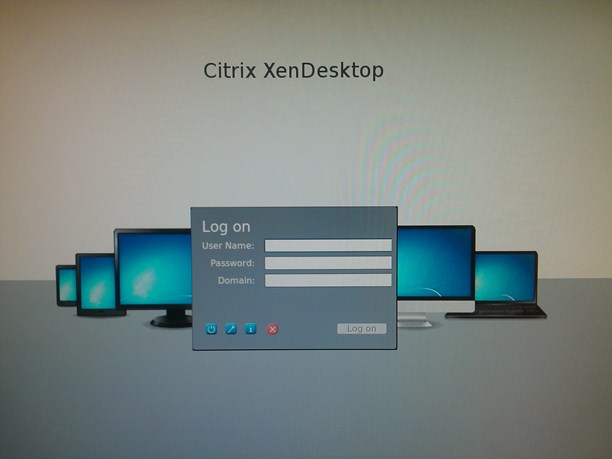
When you configure the Smart Client for use with XenApp\XenDesktop you will get the following logon screen :


(Screenshot is taken with a camera)

As you can see HP made a default page that looks very similar to the Citrix Web Interface 5.4 layout. In the Smart Client admin guide, there is a chapter about customizing the layout but I found it very unclear. So my goal was to get the existing files from the Smart Client to get an example of how this login page is constructed. Because every door on the Smart Client is locked, in terms of remote file management, there is no easy way to get to the files on the Smart Client.

To fetch the files I used the drive mapping feature of the Citrix Receiver for Linux, the default location of the drive redirection is \media, this is the mount point in Linux for USB sticks and other storage devices. By default this folder is mapped as drive leter Z: in the session. In the profile editor enable drive mapping and change the drivePathMappedOnZ value to /etc, see the below screenshot  :


After rebooting the Smart Client, logon to a XenApp\XenDesktop session and open the drive letter Z: You will now see the content of the ETC folder from the Smart Client, browse to the following folder hptc-zero-login\styles there you will find all the default styles from the different connection protocols, see screenshot :

In this case we will open the xen folder, because we want to edit the Citrix login page styles. Copy the folder from the Smart Client to a different location so we can start editing them, in the folder you will find this 2 files :

bgConfig.rtf

This file consists of the layout setting of the login screen, it’s very easy to edit this file and make customization to it, so I will not cover all the options but instead give an example :

Change the background color to white :

global {
color: FFFFFF; # White
padding: 20; # 20 pixels
}

Change the default footer text :

text {
name: ad line;
text: Welcome to bikinis.com, type in your cup size and password to continue;
position: %50%,85%;
alignment: hcenter vcenter;
color: 000000;
font-size: 16pt;
max-width: 98%;
context: login;
}

Change the logo :

image {
name: computers image;
source: /usr/share/icons/hptc-zero-login/mypicture.png;
position: 50%,50%;
alignment: hcenter vcenter;
context: login;
}

As you can see the image source directory is on the USR directory, if you want to retrieve them simply change the ETC drive redirect folder from the previous step to USR and browse to the /usr/share/icons/hptc-zero-login folder.

XenDesktop.qss

In this file you can edit the dialog text, in this example I will change it to Dutch :

}
LoginArea QLabel#loginHeader {
qproperty-text: Welkom;
color: white;
font-size: 20pt;
text-align: left;
}
LoginArea QLabel#userLabel {
qproperty-text: Gebruikersnaam;
color: white;
font-size: 12pt;
}
LoginArea QLabel#passwdLabel {
qproperty-text: Wachtwoord;
color: white;
font-size: 12pt;
}
LoginArea QLabel#domainLabel {
qproperty-text: Domein;
color: white;
font-size: 12pt;
}

Ok now we want to deploy this custom files to all the Smart Clients out there, to do this open the Profile editor and go to the additional Configuration Files section, add the files like this :

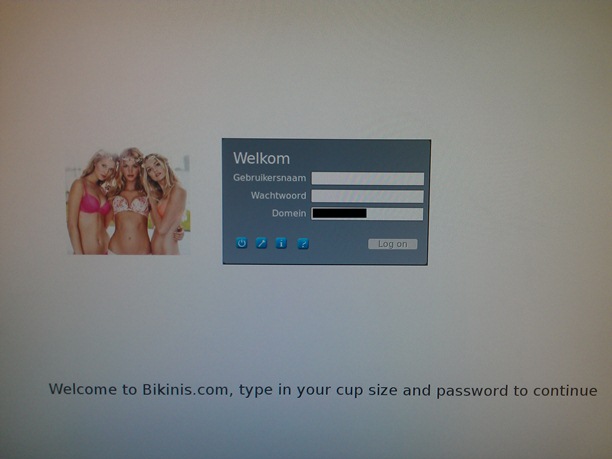
Now reboot the Smart Client and voila  :

Conclusion :
In this blog post I explained how you can customize the appearance of the HP Smart Client. You can also use this Drive Redirect option to view other files on the Smart Client such as the ICA client files. In this way you can deploy custom settings to the Smart Client by editing the files and deploy them through the Smart client Profile editor. This is useful when you cannot find the setting in the registry options in the Profile editor.

* Note you can also redirect the style directory so you can place them in a different folder, in this case I used the default locations, but the style directory can be set to a custom location with this option :

Follow me on twitter (@bramwolfs) if you want to be notified when a new blog post is available!

Please note that the information in this blog is provided as is without warranty of any kind.

How to configure WebTrace functionality in RES Workspace Manager

How to configure WebTrace functionality in RES Workspace Manager

If you have read my previous blog posts, you will notice that they are all around Citrix products. The reason for this is simple, I just have a strong passion for the Citrix product portfolio and I’m working with them for a long time now. Even in my current role as “Independent” Technical Consultant, I sometimes doubt how independent i really are, this doesn’t mean I dislike competitors, but everybody has its preferences. I share this same passion and commitment for products from RES, and especially the combination between those two.

In this first RES blog post I wanted to talk about the WebTrace functionality in RES Workspace Manager, WebTrace allows you to track down internet usage of your users, of course this must be allowed by company policies and the users should be aware that there internet behavoir is monitored.
WebTrace is one of the few components in RES Workspace Manager that doesn’t completely work out-of-the-box, when you enable it in a WIN2008R2\WIN7 environment in combination with Internet Explorer you will soon see that there is no internet traffic being logged.
This is mainly because the Web Trace Browser Helper Object (BHO) is being blocked by the Internet Protected mode which is switched on by default on the Internet security zone.

To enable the WebTrace functionality you can follow this procedure :

Step 1: Switch on WebTrace in the Workspace Manager Console

Switch on the following option under Setup -> Usage Tracking :

Step 2: Configure an Internet Explorer policy to enable the WebTrace BHO for the users

Before we do this we first have to look up the Class ID of the Web Trace BHO by opening the properties of the BHO, the BHO can be found in Internet Explorer under Manage Add-Ons :

Ok now we know the BHO Class ID we can create the Internet Explorer policy, to enable the WebTrace BHO and block the users from disabling it you can follow this steps :

– Create a new (or edit existing) policy based on inetres.admx
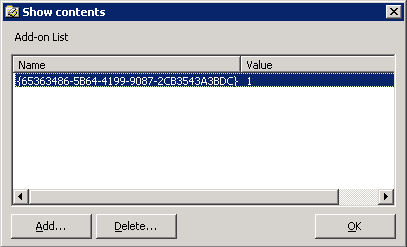
– Search the policy for the option “Add-on List” and open it.
– Fill in the Class ID : {65363486-5B64-4199-9087-2CB3543A3BDC} with a value of 1, see screenshot :

– Enable the option “Do not allow users to enable or disable add-ons” (to block users from disabling the BHO)
– Enable the option “Disable add-on performance notifications” (to avoid performance popups for startup times of the add-ons)

The policy now looks like this :

Step 3: Configure an Internet Explorer registry key to disable Internet Explorer protected mode

**Warning:  Before you proceed, you should be aware that disabling Internet Explorer protected mode can have security implications**

Because the WebTrace BHO doesn’t work when Protected Mode is switched on (according to RES this is because the BHO needs more access to system resources which is blocked when running in Protected Mode) we need to turn it off for the Internet Security zone (it’s already switch off for the other zones by default). This can be done through the following registry key :

“HKCU\Software\Microsoft\Windows\CurrentVersion\Internet Settings\Zones\3” “2500”=dword:00000003
To make it more visual (click to enlarge) :

If Protected Mode is switched off users will get a message when browsing over the internet stating that Protected Mode is not turned on, to disable this warning import the following registry key :

“HKCU\Software\Microsoft\Internet Explorer\Main” “NoProtectedModeBanner”=dword:00000001
And this looks like this :

That’s it, WebTrace will now start logging Internet traffic, which you can view in the Usage Tracking viewer in the RES Workspace Manager Console.

Conclusion :

In this blog post I showed you how you can enable the WebTrace functionality in a WIN2008R2\WIN7 environment when using Internet Explorer. It’s a nice feature but you should only enable it when necessary and take into consideration that Internet Explorer Protected Mode needs to be switched off for the WebTrace BHO to function, maybe RES will update the WebTrace BHO in the future so this would not be necessary anymore.

Please note that the information in this blog is provided as is without warranty of any kind.

Citrix UPS is awesome, but maybe it arrived too late?

Citrix Universal Print Server (UPS) is awesome, but maybe it arrived too late?

First I wanted to say that I think the Universal Print Server (UPS) is a really great feature, for those who doesn’t know the UPS feature yet, it’s build on the proven and evolved Universal Printer driver from Citrix which is used for client printer redirection for a long time, with UPS this Universal printer driver is extended to network printers also. UPS consist of a client component and a server component which you install on the print server.  I will not go into technical details about UPS, this is pretty much covered here.

While the Citrix UPS solves a lot of printing horror (think of unstable printer drivers, driver replication issues, print spooler crashes)  I do think we needed the Citrix UPS a while ago harder than we do now, this is mainly because of the following evolutions in the printing space :

1: Follow me printing concept
I see more and more customers that are moving towards a follow me printing concept, in this concept the user is presented with one print object (may be more if you want to preset printing defaults), when a user prints to this object the job is queued on a central print server, the user walks to the nearest printer and types in a code or provide a token\card and after that the print job is send to the printer, this concept has the following advances :

– User can walk to the nearest printer (no more connecting printers based on location or group)
– The user can take away confidential documents immediately
– Monitoring print behavoir and charge-back functionality
– And of course where this blog post is about : There is only one driver needed to connect to this printer object

To illustrate the follow me printing concept, I added a picture from Konica Minolta :

2: Universal Printer Drivers from the printer manufacturer
Yes there where (and maybe still are depending on the manufacturer) a lot of issues with universal  printer drivers, but the fact is that they are getting better and have broader support for different platforms and printing devices. The reason to use Universal Printer drivers from you manufacturer is simple :

– One driver to maintain
– Supports a wide range of print devices from the same manufacturer

3: Printer Driver isolation
Last but not least, in windows 2008R2 and Windows 7, there is a mechanism called printer driver isolation. Printer driver isolation means that the printer driver is isolated (Duh) from the print spooler and optionally also from other printer drivers. In this way a single bad printer driver cannot crash the entire print spooler, one side note is that your printer driver needs to support this isolation. If you never have looked at this feature, you should definitely do this because it can be a real life saver when you have a lot of printer drivers to manage.
While this is a nice build-in feature, it’s a little bit working around the issue so it’s not a reason to not look at better solutions like the Citrix UPS or option 1 and 2. The following isolation modes can be selected:

Driver-isolation mode Meaning
Shared Run the driver in a process that is shared with other printer drivers but is separate from the spooler process
Isolated Run the driver in a process that is separate from the spooler process and is not shared with other printer drivers
None Run the driver in the spooler process


Conclusion:
I’m sure there are a lot of good use cases for the Citrix Universal Print Server feature, and it’s even getting better in version 2 when there is also support for advanced printer properties.
For example it uses some nice compression technology between the client and the UPS, so if you are connecting to print servers over the WAN you better start looking at the Universal Print Server!

But on the other hand I do think the Universal Print Server arrived too late, we needed the Universal Print Server much harder a while ago then we do now because of the evolvements in the printing space I summarized in this blog.

The mystery of the Citrix Interceptor BHO

The mystery of the Citrix Interceptor BHO

When there is a new fix or update released for a product I am working with frequently, I always like to read the release notes to see what has been fixed or what kind of new features has been added. This helps in calculating what kind of impact the fix\update will have when installing it in a environment. It frustrates me when there is new functionality added that is not listed in the release notes, and to make it worse when a production environment is suffering because of this.
This is exactly the case with the Internet Explorer Add-On from Citrix called the Citrix Interceptor BHO. (BHO = Browser Helper Object)

This Citrix Interceptor BHO is automatically added through one of the following ways :

CtxVDAIEInterceptorBHO Class installed through Hotfix 025 for XenApp 6.5

CtxIEInterceptorBHO Class installed through Citrix Receiver 3.2

When one of the above is installed, you will likely see popups  when opening Internet Explorer to allow this BHO and its components to load outside of Internet Explorer protected mode.
If you were lucky you spot this popup when going through a test procedure, but if Internet Explorer was not on your test list you will get a lot of calls to the support desk from frustrated users.
Imagine that your users (or worse some management staff) ask you what this Internet Explorer Add-on is about and you cannot really give a good answer to it, will they take you serious about the things you are installing in a production environment? I think this is really bad…

Neither the release notes of Citrix Receiver 3.2 or XenApp 6.5 Hotfix 025 has some details about this BHO, it looks like it’s kept top secret, the only information from Citrix I could find is the following :

“In recent releases of Citrix Receiver for Windows, Citrix has implemented a new Browser Helper Object (BHO) – CtxIEInterceptorBHO (IEInterceptor.dll). This BHO does not currently provide any additional functionality for the majority of customers running XenApp or XenDesktop and is actively used only by certain XenApp Cloud Service Provider customers.”

Ok so it’s not used for the majority of customers running XenApp or XenDesktop, only by certain XenApp Cloud Service Providers… Why is it (already) added to a public release of Receiver and a public release of a XenApp hotfix with so less information provided?

I think only Citrix can answer this question, my guess is that the BHO adds functionality for some reverse seamless\content redirection functionality from project Dorado and that Citrix will keep this secret till the functionality is officially announced (maybe with the release of XenApp 6.5 Rollup Pack 1)

Since there is so little information about this BHO, I now choose to disable this add-ons entirely till there is more information about it from Citrix. The BHO add-ons can easily be disabled through a group policy see this CTX KB for more details on how to do this.
In this way it’s easy to enable the add-on again when Citrix comes with more information about the BHO and you decide you want to use it.

In a previous blog I wrote a workaround to get rid of the annoying popup in IE and enable the BHO and its components for everybody, but for now I would advise to disable the Citrix BHO entirely till Citrix comes with more information about it.
If someone has additional information about the interceptor BHO please let me know.

Please note that the information in this blog is provided as is without warranty of any kind.

The future of Access Gateway

The future of Access Gateway

5 June was the second Citrix CiTIE 2012 event in the Benelux, I wasn’t able to join the event but I would like to thanks everybody on twitter for the live updates and Wilco van Bragt for the summary of the event.

One of the announcements I noticed was the retirement of the Access Gateway Standard edition.
I was surprised about this retirement at first, because of the effort Citrix put into the new 5.x version (new flash based GUI, more advanced HA options, etc) but second I thought why would Citrix support 2 products with almost exactly the same set of features?
Below I have summarized a quick list of features, between the Netscaler CAGEE and CAG Standard in combination with the advanced access control software. Of course Netscaler can do a lot more other things, but we will concentrate on the Access Gateway functionality here.

Netscaler (CAGEE) CAG Standard + AAC*
ICA Proxy Yes Yes
SSL VPN Yes Yes
Multiple Logon points (Basic + Smart access) Yes Yes
Clientless Access Yes Yes
Endpoint Analysis Yes Yes
High Availability Yes Yes
LDAP \ Radius authentication Yes Yes
Simultaneous user sessions 5,000 and up** 500

* Advanced Access Control software
** Depends on the model

As you can see a lot of the same features are present on both products, a big difference is the scalability and concurrent user limits.
But although a lot of the features are the same, they are working in very different ways for example :

They use a different SSL VPN plugin
Imagine the following scenario:
One day you will install the Access Gateway Enterprise plugin to access customer A through SSL VPN, then you need remote access to customer B which uses Access Gateway Standard.
The plugins cannot co-exist so you will have to remove the Enterprise plugin, install the Standard plugin and vice versa…

They use different types of logon points
Netscaler uses virtual IP’s (VIPs) that can be configured in Basic mode or Smart Access mode (see my previous blog post for more details about this modes), more VIPs can be created depending on the use case. Each VIP can be accessed through its own FQDN.

CAG Standard has one public facing FQDN, logon points are created after this FQDN like https:\\my.cag.com\lp\xenapp, this logon points can be in Basic mode or Smart Access mode, only one Logon Point can be set as the default.

They use different clientless access methods and have a different policy structure
Netscaler is very flexible when it comes to profiles and policies, you can manage policies on almost every level (Global, VIP, Groups\Users) and apply them based on different expression filters, this is why CAGEE really fits like a glove in a lot of different access scenarios.  There is no extra software needed to enable advanced functionality like clientless access.

CAG Standard in Smart Access Mode has some advanced features like Smart groups and SSL VPN. But if you really want all the advanced features (clientless access etc) you need to connect the appliance to the Advanced Controller software, which then synchronizes with the appliance. This software runs on a windows server which can be a security concern (not because it’s windows but you would need to update and secure 2 components in this setup)

They are different in architecture and hardware
Netscaler software runs on top of FreeBSD and has a large range of appliances you can choose from depending on your needs, this are the Netscaler models available today :

Physical Appliance (MPX) Virtual Appliance (Netscaler VPX)
MPX 5500 Licensed based on bandwidth (10,200,1000,3000)
MPX 7500/9500
MPX 9700/10500/12500/15500

The higher the range the more performance you get, physical appliances can have more concurrent connections because they have SSL offloading capabilities and because there is no Hypervisor layer. Physical appliances in higher ranges also have redundant components, like power supplies.

The Access Gateway Standard appliance runs on a stripped Red Hat kernel and comes in 2 flavors :

Physical Appliance (2010) Virtual Appliance (Access Gateway VPX)

The hardware of the 2010 appliance is really low level, it’s nothing more than hardware you find in a cheap PC.
I was a little bit ashamed when i opend this appliance on a customer site a while ago because of a bad harddrive, there is no way you can explain the amount of money paid for this appliance.

Conclusion : 
So Citrix have 2 products that have very similar features, because of the difference in architecture of this products, Citrix needs to update both to support new receivers and to provide new functionality (think of Cloud Gateway functionality for example). This may be one of the core reasons why Citrix will retire one of them.
I think CAGEE (Netscaler) is the best Access Gateway edition there is, it’s far more flexible and fits in a lot more different scenarios and use cases.  Access Gateway on Netscaler is also future prove because of :

– Access Gateway is lifting on Netscalers success (build on good hardware and install base)
– All Smart Access functionality is on board of the appliance no need for external software
– Fits in a lot of different scenarios based on the modular design of Netscaler
– Can be used for more functionality then Access Gateway only, Load balancing of services for example

Ok so what will be the future of Access Gateway?
If Citrix will retire CAG Standard + Advanced and Citrix makes some changes in the licensing model of Enterprise edition to replace the other editions, then we are done right?

Not really,  I think Access Gateway VPX is a good replacement for the Secure Gateway software, a Netscaler can be a bridge to far for some customers. Also if a customer is already using a competitor of Netscaler (like F5), there may be some friction with adapting Netscaler to enable Access Gateway functionality.

The perfect future if you ask me, is that Citrix will strip the Access Gateway VPX to provide standard functionality (providing access to XenApp and XenDesktop) and give it to customers for free as a replacement of the Secure Gateway software.
Then they should retire the Advanced Controller software and ditch the 2010 appliance.
So at the end there will be 2 editions of Access Gateway left :

– Access Gateway VPX for providing basic functionality to access XA/XD
– Netscaler with Access Gateway Platform license for providing basic functionality to access XA/XD, which can be extended with Access Gateway Universal licenses (also included in Cloud Gateway Enterprise) to provide Smart Access functionality.

Please note that the information in this blog is provided as is without warranty of any kind, some information is based on speculations and predictions.

Citrix Cloud Gateway, a wrap-up so far

Citrix Cloud Gateway, a wrap-up so far

Table of contents :

1 : Introduction
2 : Cloud Gateway Editions
3 : Storefront services
4 : Access Gateway services
5 : Cloud Gateway Enterprise and the Access Gateway Universal License
6 : Cloud Gateway Express and the Platform License
7 : Webinterface V.S. Receiver for Web
8 : Conclusion

1 : Introduction

In this blog post I wanted to talk about Citrix Cloud Gateway, as you may already know, Cloud Gateway will replace Citrix Webinterface and Webinterface will go end of live in 2015. Webinterface has grown into a key component in almost every Citrix environment, and it is a so called “proven technology” product. Webinterface is great in providing access to XenApp and XenDesktop environments in many different ways and  different scenarios, but that is also its limitation, there is no possibility to integrate it with Cloud services like follow-me-data or SaaS applications. This is why Citrix made a new product from scratch, called Cloud Gateway. This blog post is a wrap-up so far about Cloud Gateway, because Citrix is working hard on the product things in this blog post may be very soon changed or outdated.

2 : Cloud Gateway Editions

There are currently 2 editions of Cloud Gateway :

Cloud Gateway Enterprise

Cloud Gateway Enterprise is the paid version and provides the following features :

– Access to XenApp and XenDesktop (through Storefront)
– ShareFile integration (new in version 2.0)
– Single Sign On (SSO) and account provisioning for Web and SaaS applications through AppController
– Mobile (native) app management + remote wipe (new in version 2.0)
– Access Gateway Universal License included

Cloud Gateway Express

Cloud Gateway Express is free for XenApp and XenDesktop customers and provides access to XenApp and XenDesktop and Merchandising services only.This version will be the direct replacement of Webinterface.
With Merchandising services you can manage the complete Citrix Receiver (and other plugins) life cycle.

3 : Storefront Services

As you can see in the above pictures Storefront is one of the key components in Cloud Gateway, it’s the broker for all the services behind it and provides a SSO experience for the users.
Storefront provides access to XenApp and XenDesktop in the following 3 ways :

1 : Access through the Native Receiver (Self Service plugin)
2:  Access through StoreWeb (Receiver for Web)
3:  Access through Legacy mode (PNAgent)

The native receiver can be configured with a provisioning file (.cr file which is XML based) downloaded from the Receiver for Web or distributed by Email or something like that.
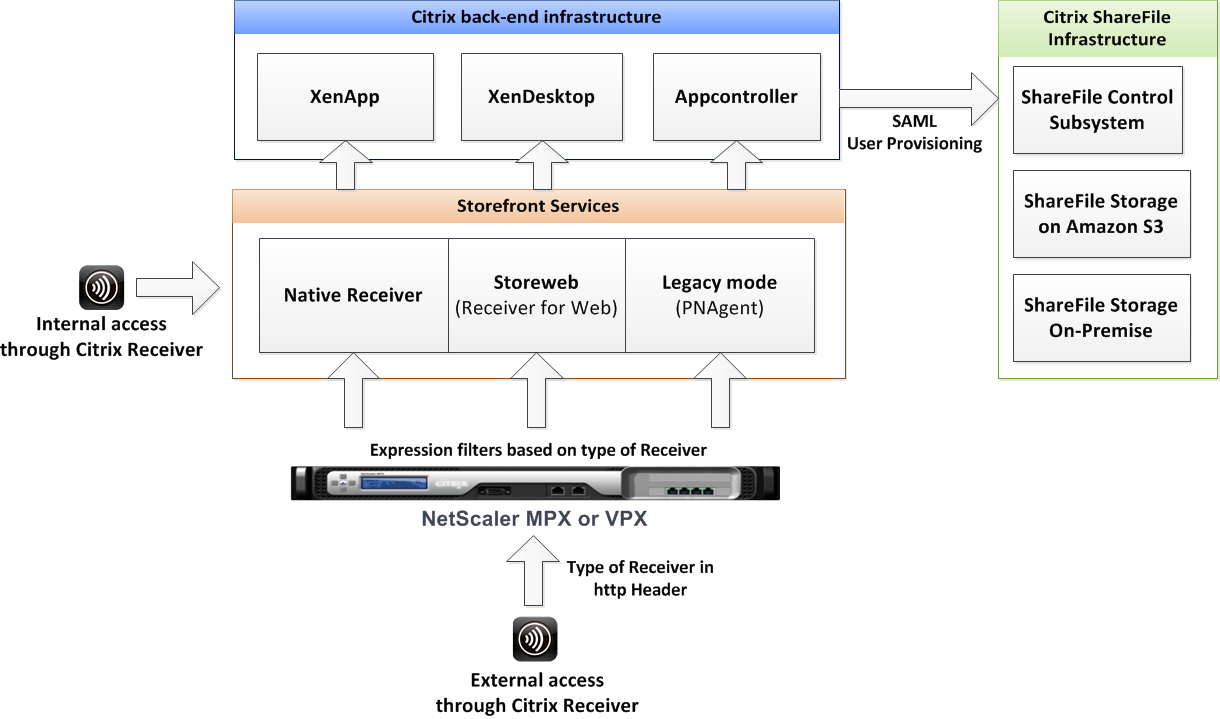
To make the internal access to Storefront more clear I made the following drawing :

Every login point is used by different type of client devices, some Receivers (older Thinclients, Android devices and Iphones) still uses the legacy mode (PNAgent). But newer Receivers will talk to Storefront directly and not using Legacy mode anymore.

4 : Access Gateway Services

Another key component in Cloud Gateway is the Access Gateway, there are 2 types of Access Gateways that can be used with Cloud Gateway:

1: Access Gateway VPX (with or without advanced controller software)
2: Access Gateway Enterprise (Netscaler VPX\MPX)

Whether you go for Cloud Gateway Express or Enterprise you need to buy a Access Gateway Platform license for one of this Access Gateways. The platform license will give you unlimited access to XenApp and XenDesktop, this is called ICA proxy. With ICA proxy you are allowed to land on the Webinterface and launch a XenApp and/or a XenDesktop session but you cannot use any advanced features of the Access Gateway (for example Clientless Access, VPN plugin, EPA scans, etc), if you want to use this features you need to purchase a Access Gateway Universal License per concurrent user (included with Cloud Gateway Enterprise license).
In Access Gateway you can choose between the following logon point\virtual server modes :

1: Basic Mode (ICA Proxy only) (Platform license needed)
2: Smart Access Mode (Advanced Features) (Platform license + Universal License needed)

To make this more clear I made a drawing how the access to storefront looks like with the Access Gateway Enterprise edition :

As you can see the Netscaler will check, if it is correctly configured, the type of Receiver based on expression filters and HTTP headers. Netscaler will then contact Storefront the right way depending on the Receiver type. With Access Gateway VPX you cannot configure this expression filters, Access Gateway VPX works with Receiver for Web, but I have not yet seen this working with the native receiver from the outside.
My guess is that Citrix will enable this in a feature release of Access Gateway VPX.

5: Cloud Gateway Enterprise and the Access Gateway Universal License

If you purchase Cloud Gateway Enterprise you are also entitled to use the Access Gateway Universal License, i think this is a logical step because Cloud Gateway Enterprise leverages the clientless access and VPN features of the Access Gateway, for example Appcontroller can be configured with keywords to start the VPN plugin and for access to Storefront clientless access is used.

6: Cloud Gateway Express and the Platform License (ICA Proxy)

As you may have noticed you need clientless access when you want to use the Native Receiver through Access Gateway, though it works on a VIP in basic mode the documentation says that you need a VIP in Smart Access mode to make this work. I can imagine that Citrix is going to allow one of the following when using Cloud Gateway Express with the platform license only :

1: Only allow landing on the Receiver for Website (same as ICA proxy using Webinterface)
2: Allow access for all type of Receivers, but only for use with XenApp and XenDesktop

Option 2 is most preferred imho! 😉

6 : Webinterface V.S. Receiver for Web

First : Webinterface cannot be directly compared to Storefront, because Storefront enables a lot more other features then Webinterface (SSO to other services, Application subscription, more advanced HA, etc.) But if we compare Webinterface with the Receiver for Website, it is safe to say that Webinterface has still a lot more features. Thomas Koetzing made a list of missing features here, but I am certain that Citrix is working hard on this feature list, remember that they are only at version 1.1 so there is a lot more to come.

The total redesign has also some very positive points, for example a big plus of Storefront is that it includes a new user authentication method which directly queries Active Directory rather than the existing double-hop Web Interface process where user credentials are sent from the Web Interface server to the XML broker who then negotiates authentication with the Domain Controller.

7: Conclusion

I think Cloud Gateway and Storefront have a lot of potential, it gives the user a true single logon experience with all of the applications and data they need in one place on almost every device. Integration is the key here as more and more companies are starting to use Cloud services,  Cloud Gateway aggregates and secures this services into one logical logon point with the same look and feel on every device.

On the down side, Storefront is still missing a lot of features compared to Webinterface, if you already installed Storefront and walked through the console you were probably done in 30 seconds 😉 not much to customize there. This is why Storefront is not yet a tight fit in scenarios with special needs and requirements. I hope Citrix will make it as flexible and customizable as Webinterface is today in feature releases!

If you want to know more about Fine-tuning Adaptive Display, please read my previous blog post and follow me on twitter or subscribe on this blogsite if you want to be notified when a new blog post is available! thanks!

Please note that the information in this blog is provided as is without warranty of any kind, it is a mix of own research and information provided by Citrix.

Adaptive Display, what’s in the game? And do we need to fine-tune?

Make sure to also check this blogpost about a very handy tool named Remote Display Analyzer

In this blog post I wanted to talk about Adaptive Display, this new HDX feature is now available in both XenDesktop 5.5\5.6 and XenApp 6.5 (through a hotfix), Adaptive Display is the successor of the highly successful Progressive Display SpeedScreen technology, and it’s switched on by default. It’s an awesome technology because it is auto adopting to changes in the available bandwidth.

There is not so much information in the Citrix Edocs about fine tuning Adaptive Display, this is mainly because it’s auto-tuning and in various blog posts from Citrix they are saying the following :

“Progressive Display requires creating complex policy configurations to get it right making it a hard to use feature. Adaptive Display eliminates the need for such complex configurations and provides a fantastic out-of-the-box experience, making it zero configurations for Citrix Administrators”

Ok that’s fine by me, so we do not have to create complex policies anymore for LAN and WAN use cases, because it will detect the available bandwidth and adjusts accordingly. Super!
But what is exactly going on inside the Thinwire channel?
Before I go further, let’s summarize the default settings that are adjustable within Adaptive Display :

Adaptive Display Setting

Default Value

Max frames per second 24
Target Minimum Frame rate 10
Minimum Image Quality Normal
Moving Image Compression On (Enables or Disables Adaptive Display)
Extra Color Compression Default Off and enabled when bandwidth is below 8192 KBps
Heavyweight Compression Default Off
Lossy Compression level Default Medium, the default threshold is unlimited

* Note:  At this time, not all Adaptive Display policies can be configured using the XenApp 6.5 AppCenter console. Use Windows Group Policy Editor (gpedit.msc) instead.

Ok so now we know what settings are in the game of Adaptive Display, how are this settings come together? To make this more clear I made some drawings and explanations.

Let’s begin with the Extra Color Compression setting,  Color Compression takes advantage of the fact that the human eye is less sensitive to color information (Chroma) than luminance (Luma). When images are encoded with less color information, the bandwidth savings are huge yet the human eye still sees a very satisfactory picture. Most of today’s digital cameras use this technique to save on storage space. Extra Color Compression is turned on by Adaptive Display when the default threshold of 8192 KBps is reached, let’s picture this default behavoir :

Ok moving on to the Minimum Image Quality setting, this setting sets the JPEG quality floor.
In other words, this is the minimal acceptable JPEG quality, the following minimum quality levels can be set :

Minimum Image Quality

JPEG Quality

Ultra High 80 (highest image quality, lowest Compression)
Very High 55
High 30
Normal (Default) 20
Low 15 (Lowest image quality, Highest Compression)

The Lossy Compression level set’s the starting JPEG Quality, Adaptive Display adjusts the JPEG quality between the starting point to the Minimum Image Quality based on the bandwidth available to try to keep the frame rate from decreasing. The default starting JPEG Quality is 55 (Medium). Ok let’s picture this combination :

Notice that the default Lossy Compression level is set to Medium and the threshold to enable Lossy compression is set to 2147483647 KBps (unlimited), which means that this setting is always on.
The following Lossy Compression levels can be configured :

Lossy Compression Level

Starting JPEG Quality

High 25
Medium (Default) 55
Low 80
None 80 (Lossless)

Ok now we know what the default settings are and how the frame rate and compression is dynamically adjusted by Adaptive Display.  So what about this default settings, should we change it or leave it alone?
As usual it depends on the use case 🙂 but read on….

There is a great tool from Citrix called HDX Monitor, this tool lets you see all the HDX aspects in an active ICA session. If you start the HDX Monitor (with the default settings in place) you will see the following screen :

Ok looks good, but what’s that big red cross? Let’s find out :

Error : Image compression is not tuned to the available bandwidth. An Administrator can improve the user experience by creating a policy that optimizes image compression.

Ok so it looks like the HDX monitor engineering team is not happy with the Out-of-the-Box experience settings from the HDX Adaptive Display engineering team 🙂
I think the HDX Monitor engineering team is right, because if we connect through a fast LAN connection the default Medium compression is used and the windows flag background and other images looks like this :

This is not the best experience you can get with LAN conditions.
Why did Citrix choose this default Out-of-the-Box settings? I think because of a combination between the following 3 points :

1: User Experience
2: Server Scalability
3: Bandwidth Scalability

The default settings also improves the performance on the LAN when viewing high resolution photos etc, if you enabled Progressive display  in the past your users might already be used to this compression level.
But we can consider to improve the user experience for LAN scenarios by lowering the Lossy compression level or turning it off. This can be done in 3 ways :

1: Configure a Lossy Compression maximum threshold

The default threshold for Lossy Compression is set to unlimited, so by default Medium compression is always used. We can change the maximum threshold so we can give it a maximum  value in KBps, above that threshold Lossy Compression will be turned off. This looks like this :

As you can see the Lossy Compression will be turned off when the maximum threshold is reached, for example you can set this threshold on 75% of your LAN speed. The side effect of this one, is that you don’t have any Lossy Compression at all when the Bandwidth is above the maximum Threshold. This can be negatively impact your environment with a lot of LAN users viewing high resolution photos.

2: Set the Default Lossy Compression to Low

If we want to improve the user experience on the LAN, we can also lower the Lossy Compression to the lowest level. This looks like this.

Keep in mind that Adaptive Display will try to maintain this starting JPEG Quality also for your WAN users.

3: Configure different Adaptive Display policies and filter them on IP address

This one is a little bit the same as we configured for Progressive Display in the past.
Make a policy which applies a low level of Lossy compression for you LAN users and filter them on internal IP ranges and give it a higher priority then your default policy.
You can let the default policy (which applies to all users) default or change it with higher compression levels. In this scenario we only give the LAN users a higher starting JPEG quality.

Conclusion :

Do we need to fine-tune Adaptive Display?
I think we need to take this into consideration depending on the use case, for example :
– Do your users need to see lossless images on the LAN?
– Is your environment (Network, Servers, Client Devices) fast and scalable enough?
I also think the default Out-of-the-Box configuration is fine for most environments, but as you can see there are possibilities to change the default behavoir of Adaptive Display slightly to fit your needs.
You can do this by changing the compression levels and telling Adaptive Display what’s the starting JPEG Quality and the Minimum acceptable JPEG Quality.

What do you think? Please leave a comment on your thoughts.
Please note that the information in this blog is provided as is without warranty of any kind, it is a mix of own research and information from the following sources :

Citrix Edocs “Configuring Adaptive Display” (Contains wrong information about the default Lossy compression level values)
Citrix Blog “Dynamic Color Compression”
Citrix Blog “Introducing Adaptive Display”